🔔

Notifications Management

Manage appointment-related notifications, delivery status, and communication channels

3 min read

Overview

Notifications Management gives receptionists visibility into all appointment-related communications sent to patients. SehaFile sends notifications through three channels: in-app notifications (visible in the Citizen App), SMS messages to registered phone numbers, and push notifications to mobile devices. This page lets you track what was sent, when, and whether it was delivered.

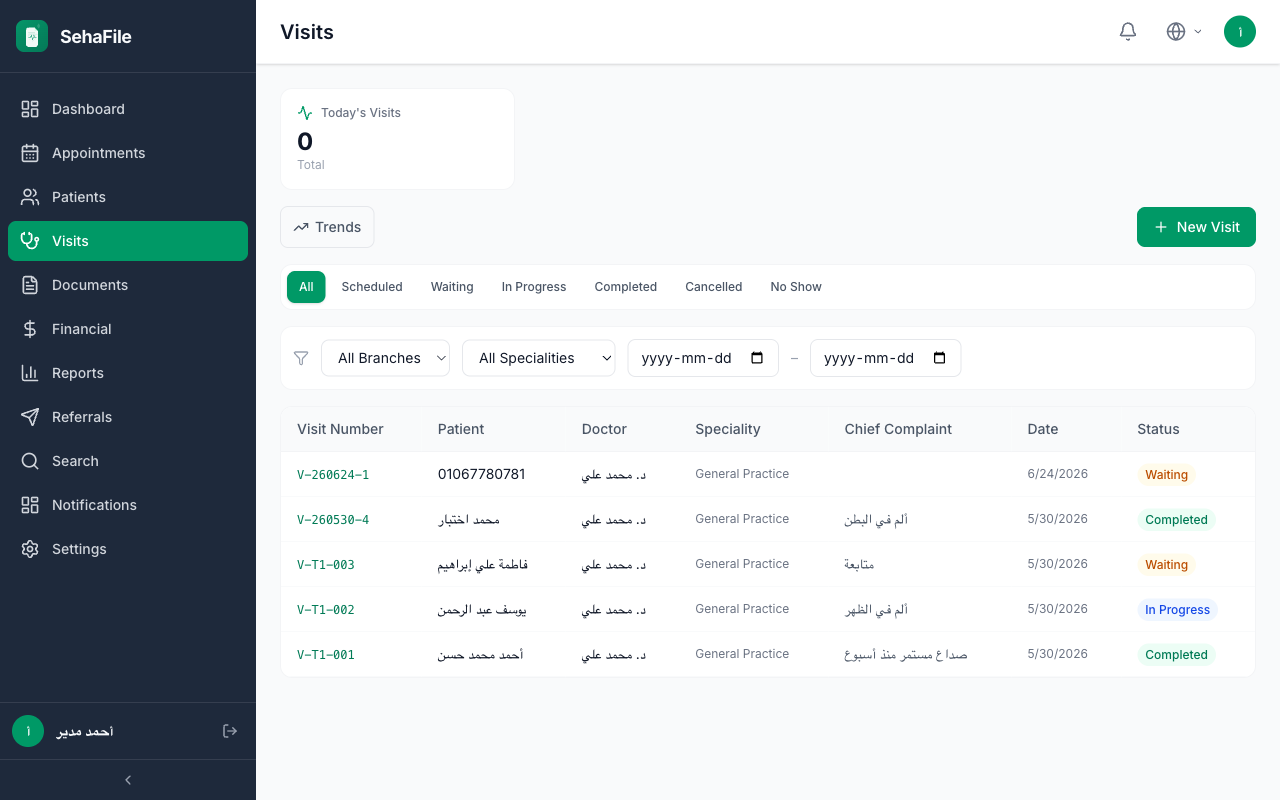
Notifications management page showing a list of sent notifications with type, channel, status, and timestamp columns

Notification Types

The system generates the following notification types relevant to receptionists:

  • appointment_reminder — Automated 24-hour reminder before a scheduled appointment
  • appointment_confirmed — Confirmation sent when an appointment is booked
  • appointment_cancelled — Notification when an appointment is cancelled
  • appointment_rescheduled — Alert when date/time changes
  • waiting_list_notify — Notification sent when a waiting list patient's turn arrives
  • recall_reminder — Follow-up reminder for patient recalls

Viewing Notification History

  1. Access Notifications — From the sidebar, navigate to the notifications section. The notification log shows all sent communications.
  2. Filter by Type — Use the type dropdown to show only specific notification types (e.g., show only appointment_reminder).
  3. Filter by Date Range — Select start and end dates to narrow down the notification history.
  4. View Details — Each notification entry shows:
    • Patient name
    • Notification type and title (Arabic/English)
    • Body message content
    • Channel (in_app, sms, push)
    • Sent timestamp
    • Delivery status

Communication Channels

In-App Notifications

Always available. These appear in the patient's SehaFile Citizen App notification center. No additional configuration needed.

SMS Notifications

Sent to the patient's registered phone number. Requirements:

  • Valid Egyptian mobile number in the patient record
  • Clinic has active SMS credits (managed by admin)
  • SMS gateway is configured in clinic settings

Push Notifications

Sent to the patient's mobile device if they have the Citizen App installed with push notifications enabled.

Receptionist Actions

  1. Verify delivery — If a patient claims they did not receive a notification, check the notification log for their name. Verify the channel and delivery status.
  2. Identify failed deliveries — Look for notifications with “failed” status. Common causes: invalid phone number, SMS credits depleted, patient uninstalled app.
  3. Manual follow-up — For failed notifications, contact the patient directly by phone to deliver the message manually.
  4. Update patient contacts — If delivery fails due to wrong phone number, update the patient's profile and the next notification will use the corrected number.
Tip: Check the notification log weekly to identify patterns of failed deliveries. If the same patients consistently have delivery failures, their contact info likely needs updating.
Tip: Patients who have the Citizen App installed receive both in-app and push notifications, providing redundancy. Encourage patients to install the app for the best notification experience.
Warning: SMS messages incur costs per message. Monitor your clinic's SMS credit balance with the admin. When credits are depleted, SMS notifications will fail silently while in-app notifications continue working.

FAQ

Can I resend a failed notification?

Manual resending is not currently supported through the UI. For urgent cases, contact the patient directly by phone.

How long is notification history retained?

Notification history is retained indefinitely. You can filter by date range to find older entries.

Can I send custom notifications to patients?

Receptionists cannot send arbitrary custom notifications. All notifications are triggered by system events (booking, cancellation, reminder cron). For custom communications, use phone calls or external messaging.

Are notifications bilingual?

Yes. Every notification includes both Arabic (title_ar, body_ar) and English (title_en, body_en) content. The patient sees the version matching their app language preference.

Was this article helpful?