Batch Claims Processing
Bulk create claims per insurer and track submission, approval, and payment
Overview
Batch claims processing allows you to automatically create a single claim that includes ALL pending invoices for a specific insurance company. Instead of manually selecting individual invoices, the batch function gathers every invoice with insurance_status "pending_claim" for the chosen insurer and creates one consolidated claim. This is ideal for end-of-week or end-of-month claim submissions.
Creating a Batch Claim
- Navigate to Claims: Go to Insurance > Claims from the sidebar.
- Click Batch Create: Click the Batch Create (إنشاء مجمّع) button at the top of the claims list.
- Select Insurance Company: Choose the target Insurance Company from the dropdown.
- Filter by Branch (Optional): If you want to create a branch-specific batch, select the Branch. Otherwise, leave it empty to include all branches.
- Confirm: Click Create Batch Claim. The system finds all invoices with pending_claim status for that company (and branch, if specified), then creates a single claim grouping them all.
Tracking Batch Claims
- Claims List: All batch claims appear in the same Insurance > Claims list alongside manually created claims.
- Claims Summary: Click Summary tab to see aggregated metrics:
- Pending - Total amount and count of draft/submitted/under-review claims
- Approved - Approved and partially-approved claims with amounts
- Paid - Claims that have been paid with total received
- Overdue - Claims past their due date that are still under review
- Overdue Claims: Click Overdue tab to see claims that have exceeded their expected response time, ordered by due date (oldest first).
Workflow After Batch Creation
- Review the Claim: Open the batch claim to see all included invoices with patient names, amounts, and service details.
- Submit to Insurer: Update status from "draft" to "submitted" when you send the physical or electronic claim to the insurance company.
- Track Response: Update to "under_review", "approved", "partially_approved", or "rejected" as responses come in.
- Record Payment: When the insurer pays, update status to "paid" with the actual paid_amount. This updates all linked invoices.
Tip: Schedule batch claims at the end of each week (e.g., every Thursday) to maintain consistent cash flow from insurance companies. Most insurers process claims within 30-45 days of submission.
Warning: The batch function requires at least one pending invoice for the selected company. If no invoices are pending, you will receive an error: "No pending invoices found for this company".
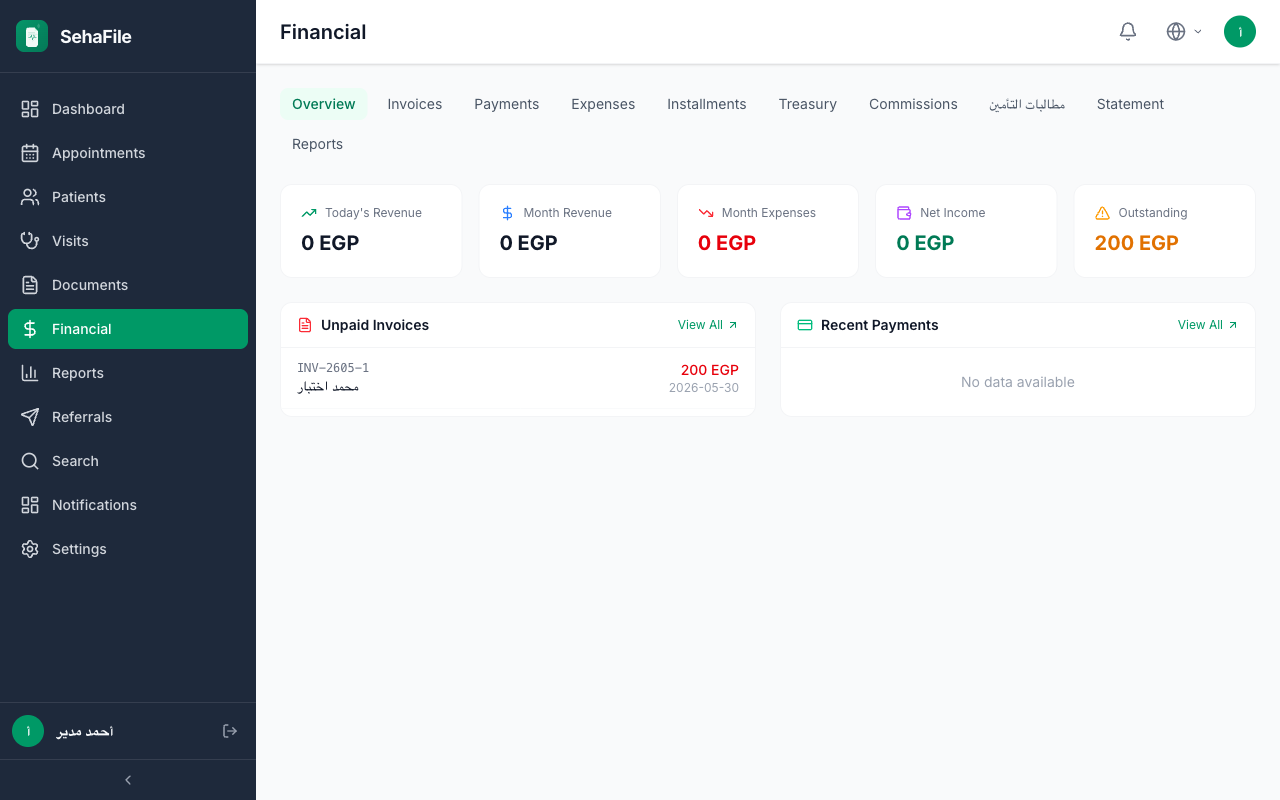
Batch claims creation dialog with insurance company selection, and claims summary showing pending, approved, paid, and overdue metrics
Frequently Asked Questions
Can I create multiple batch claims for the same company?
Yes, but only if new invoices accumulate after the first batch. Each batch picks up only invoices with "pending_claim" status - already claimed invoices are excluded.
What is the difference between batch and manual claim creation?
Manual claims let you select specific invoices. Batch claims automatically include ALL pending invoices for the selected company, saving time when you want to submit everything at once.
How do I handle partially approved batch claims?
Update the claim status to "partially_approved" and enter the approved_amount. The adjustment_amount (difference between total and approved) is calculated automatically. You may need to follow up on the unapproved portion.
Was this article helpful?