Payment Receipts
Generate and print payment receipts for patients after recording payments
Overview
Payment receipts in SehaFile serve as official proof of payment for patients. After recording any payment, you can generate a formatted receipt that includes the clinic branding, patient details, payment amount, method, reference number, and the associated invoice number. Receipts can be printed on standard A4 paper or thermal receipt printers.
Generating a Receipt
- Record the Payment: First, record the payment through Financial > Payments > + Record Payment (see Recording Payments article for details).
- View Payment Details: After saving, you are redirected to the payment confirmation screen. Alternatively, navigate to Financial > Payments and click on any payment in the list.
- Click Print Receipt: On the payment detail view, click the Print Receipt (طباعة إيصال) button in the top-right corner.
- Receipt Preview: A print preview opens showing:
- Clinic Header - Clinic name (Arabic and English), logo, address, phone, and tax registration number
- Receipt Number - Based on the payment reference number
- Date and Time - When the payment was recorded
- Patient Info - Name, file number
- Payment Details - Amount, method, type (consultation, procedure, etc.)
- Invoice Reference - Linked invoice number if applicable
- Received By - Name of staff who collected the payment
- Remaining Balance - Patient's outstanding balance after this payment
- Print or Save as PDF: Click Print to send to the connected printer, or use your browser's "Save as PDF" option for digital copies.
Receipt from Invoice View
- Open the Invoice: Navigate to Financial > Invoices and click on a paid or partially paid invoice.
- Payment History Section: Scroll to the Payments section at the bottom of the invoice detail. Each payment entry has a small Receipt icon.
- Generate Receipt: Click the receipt icon next to any payment to generate a receipt for that specific transaction.
Tip: For thermal receipt printers (58mm or 80mm), the receipt template automatically adjusts to the narrower width. Configure your printer settings in Settings > Printing.
Tip: You can also batch-print receipts for the day by exporting payments via Financial > Payments with today's date filter and using the export function.
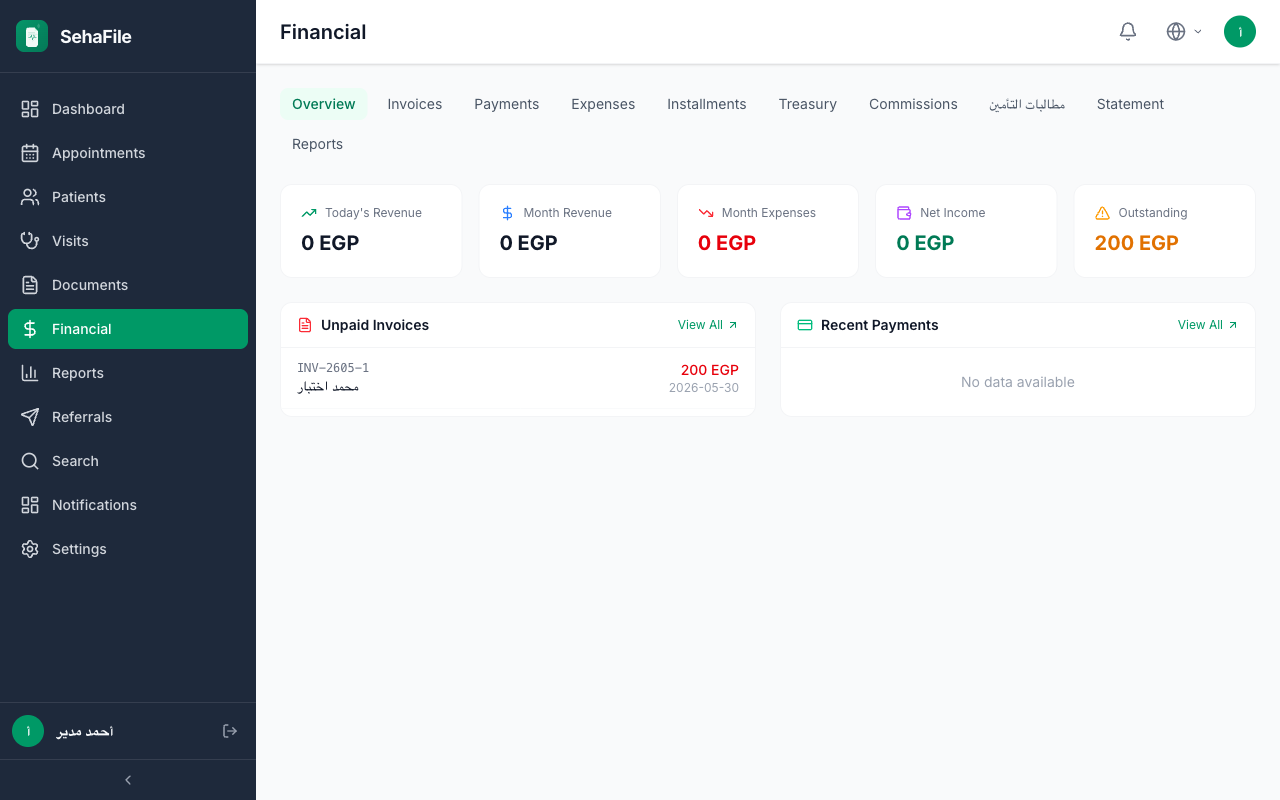
Payment receipt preview showing clinic header, patient details, payment amount, method, invoice reference, and print button
Frequently Asked Questions
Can I reprint a receipt?
Yes. Navigate to the payment record at any time and click Print Receipt again. Receipts can be reprinted unlimited times.
Does the receipt include the clinic tax registration number?
Yes. The clinic's tax ID (set in Settings > Clinic Profile) appears on all receipts for tax compliance purposes.
Can I customize the receipt layout?
The receipt follows a standard template that includes your clinic logo and branding. Custom templates can be configured through Settings > Printing > Receipt Template.
Is there an Arabic-only receipt option?
The default receipt is bilingual (Arabic and English). You can select Arabic-only in Settings > Printing > Language.
Was this article helpful?