🏛️

E-Invoice (ETA)

Prepare and submit electronic invoices to the Egyptian Tax Authority

3 min read

Overview

SehaFile integrates with the Egyptian Tax Authority (ETA) e-invoicing system to help clinics comply with Egypt's mandatory electronic invoicing requirements. The module allows you to prepare invoices in the ETA-compliant format, assign tax IDs, and submit them electronically. Each e-invoice tracks its submission status through the lifecycle: Draft, Pending, Submitted, Accepted, or Rejected.

Preparing an E-Invoice

  1. Navigate to E-Invoices: Go to Financial > E-Invoices from the sidebar.
  2. Select an Invoice: Click + Prepare E-Invoice or navigate from an existing invoice's detail page using the Prepare for ETA button.
  3. Enter Tax Details:
    • Issuer Tax ID (الرقم الضريبي للمُصدر) - Your clinic's tax registration number
    • Receiver Tax ID (الرقم الضريبي للمستلم) - The patient's or company's tax ID (optional for B2C)
  4. Review Document Data: The system auto-calculates:
    • Document Type - "I" for invoice (automatically set)
    • Total Amount - Pulled from the invoice total
    • Tax Amount - Pulled from the invoice tax field
    • Net Amount - Total minus tax
  5. Save as Draft: Click Prepare. The e-invoice is created with status "draft" and linked to the original invoice.

Submitting to ETA

  1. Open the E-Invoice: Navigate to Financial > E-Invoices and click on a draft e-invoice.
  2. Review All Fields: Verify that tax IDs, amounts, and document type are correct.
  3. Click Submit: Click the Submit to ETA button.
  4. Confirmation: The system:
    • Updates status to "submitted"
    • Records the submission date
    • Stores the submission ID returned by ETA
    • Saves the response data for reference

Tracking E-Invoice Status

Use the E-Invoices list to filter by status:

  • Draft - Prepared but not yet submitted
  • Pending - Awaiting submission
  • Submitted - Sent to ETA, awaiting acceptance
  • Accepted - Approved by ETA
  • Rejected - Rejected by ETA (check response_data for reason)

Tip: Configure your clinic's tax ID in Settings > Clinic Profile > Tax Registration Number so it auto-fills when preparing e-invoices.

Warning: Each invoice can only have one e-invoice record. If you attempt to prepare an e-invoice for an invoice that already has one, the system will return an error. If correction is needed, the original must be handled through ETA's correction process.

Warning: Only e-invoices in "draft" or "pending" status can be submitted. Once submitted, the status cannot be changed manually.

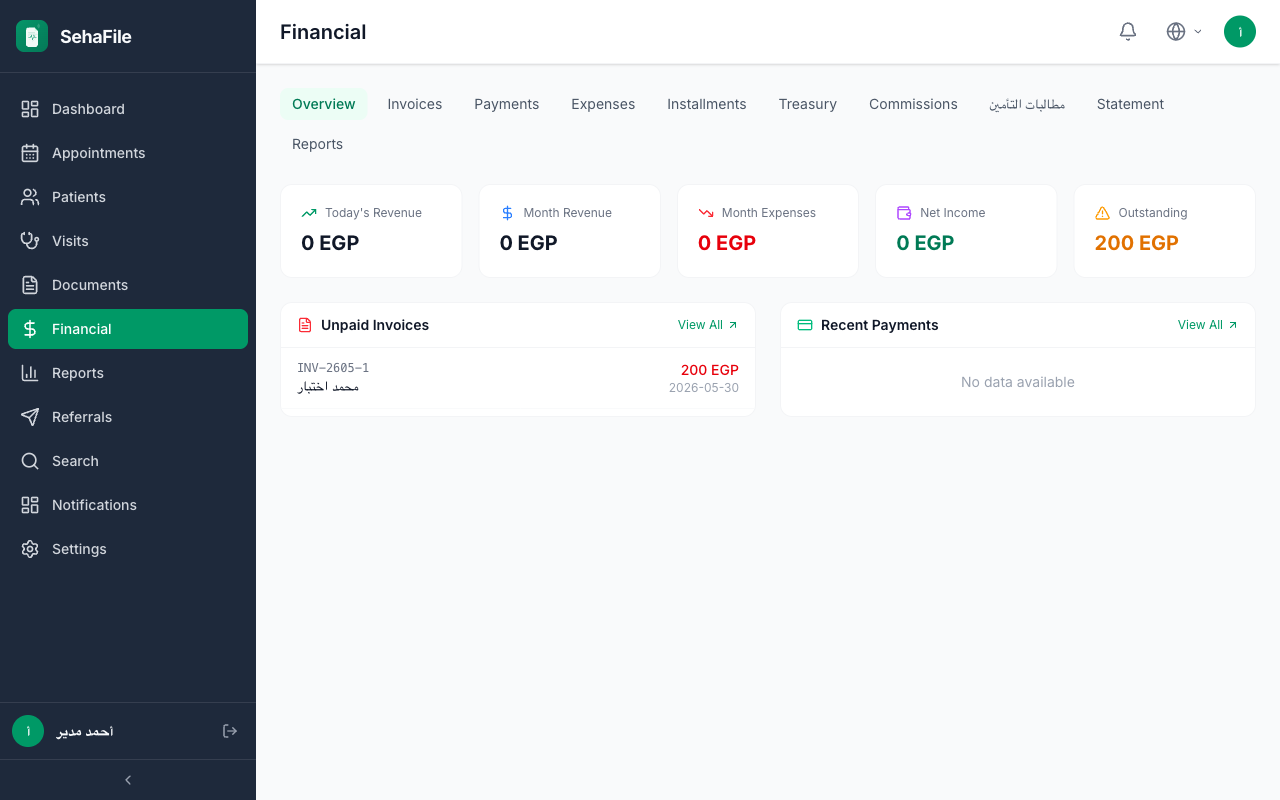
E-Invoice preparation form showing tax ID fields, auto-calculated amounts, and the Submit to ETA button with status tracking list

Frequently Asked Questions

Is e-invoicing mandatory for clinics in Egypt?

Yes. The Egyptian Tax Authority has mandated electronic invoicing for all registered businesses. Clinics must submit e-invoices for services that are subject to VAT.

What tax ID format does ETA accept?

ETA accepts the 9-digit tax registration number issued by the Egyptian Tax Authority.

Can I submit e-invoices in bulk?

Currently, e-invoices are submitted individually. Filter by "draft" status to see all prepared e-invoices ready for submission.

What if an e-invoice is rejected?

Check the response_data field for the rejection reason. Common issues include incorrect tax IDs or amount mismatches. Correct the issue in a new invoice and prepare a new e-invoice.

Was this article helpful?