🩺

Medical Conditions

Track your chronic conditions, diagnoses, and their current status

3 min read

Overview

The Medical Conditions section allows you to maintain a complete record of your diagnosed health conditions. Each condition is tracked with its status (active, managed, or resolved), severity level, diagnosis date, and managing doctor. This information is vital for any healthcare provider treating you, especially in emergencies where knowing your chronic conditions can be life-saving.

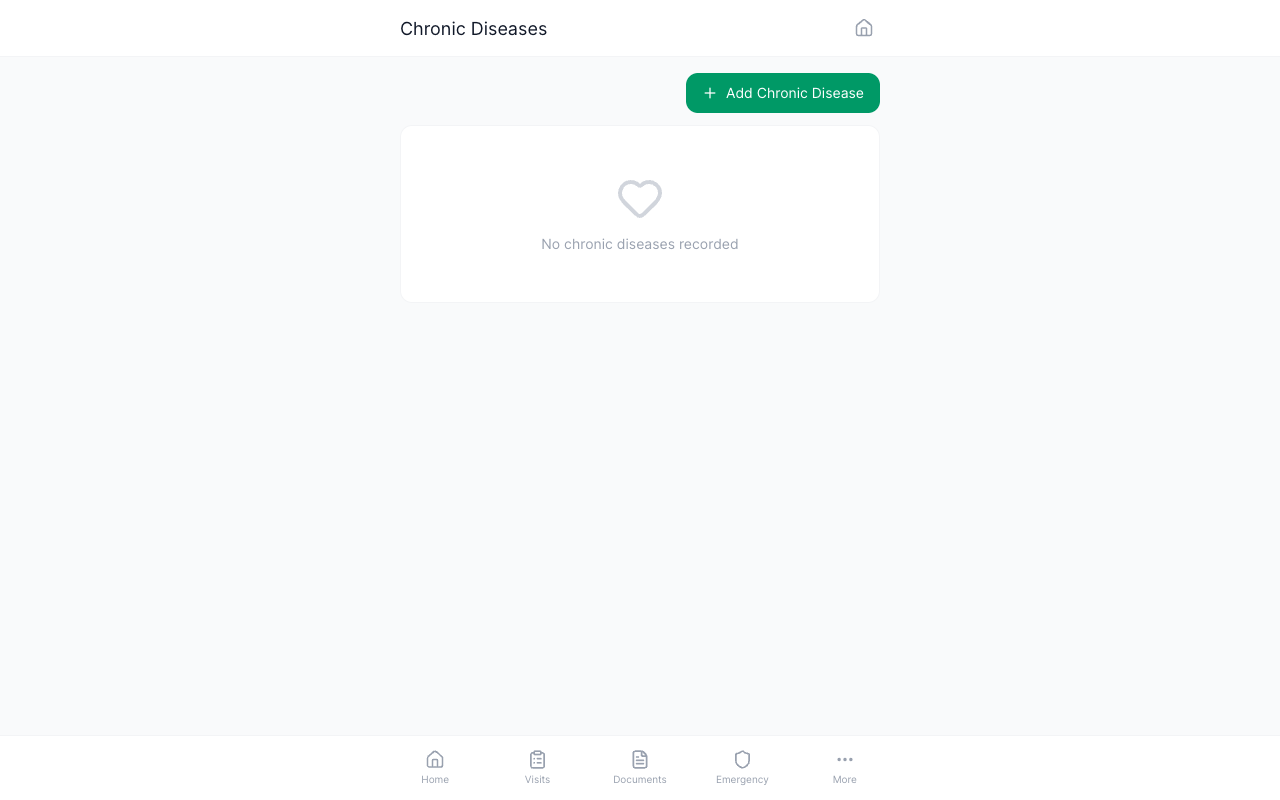
Medical conditions list showing condition cards with status badges

Viewing Your Conditions

  1. Navigate to Conditions -- From the bottom nav, tap "Profile", then select "Medical Conditions" from the menu. Your conditions are displayed as cards.
  2. Condition Cards -- Each card shows the condition name in Arabic (and English if provided), a colored status badge, and the diagnosis date. Status colors are:
    • Red badge "Active" -- The condition is currently affecting you
    • Yellow badge "Managed" -- Under control with treatment
    • Green badge "Resolved" -- You have recovered

Adding a New Condition

  1. Tap the "+" Button -- On the conditions page, tap the floating add button to open the new condition form.
  2. Condition Name (Arabic) -- Type the condition name in Arabic (required). The system provides auto-suggestions as you type from a database of common conditions.
  3. Condition Name (English) -- Optionally enter the English medical name for international records.
  4. Select Status -- Choose from: Active, Managed (under control), or Resolved.
  5. Set Severity -- Optionally indicate the severity level of the condition.
  6. Diagnosis Date -- Select the date when this condition was first diagnosed using the date picker.
  7. Tap "Save" -- The condition card appears in your list immediately.

Editing and Managing Conditions

  1. Edit a Condition -- Tap "Edit" on any condition card to update its status, severity, or other details. This is useful when a condition progresses from "active" to "managed."
  2. Link a Visit -- You can link related visits to a condition to track its history. On the condition detail page, tap "Link Visit" and select from your visit history.
  3. Delete a Condition -- Tap "Delete" on the condition card to remove it. A confirmation dialog appears before deletion.

Tip: Conditions marked as "Active" appear on your Emergency Card (if enabled). Keep the status updated so emergency responders see accurate information.

Warning: Deleting a condition removes it permanently from your profile. If the condition was synced from a clinic, the clinic retains their copy but it will no longer appear in your citizen profile.

FAQ

Can clinics add conditions to my profile?

Yes. When a doctor diagnoses you at a SehaFile-connected clinic, the condition is automatically synced to your profile. You can edit the status but cannot delete clinic-synced conditions.

What is the ICD-10 code?

ICD-10 is the international classification of diseases. When available, the system automatically links conditions to their ICD-10 code for standardized medical records.

How do I mark a condition as resolved?

Tap "Edit" on the condition card, change the status to "Resolved," and save. The card will show a green badge.

Was this article helpful?