🏠

Dashboard & Home Screen

Navigate your health profile overview, recent visits, and upcoming appointments

3 min read

Overview

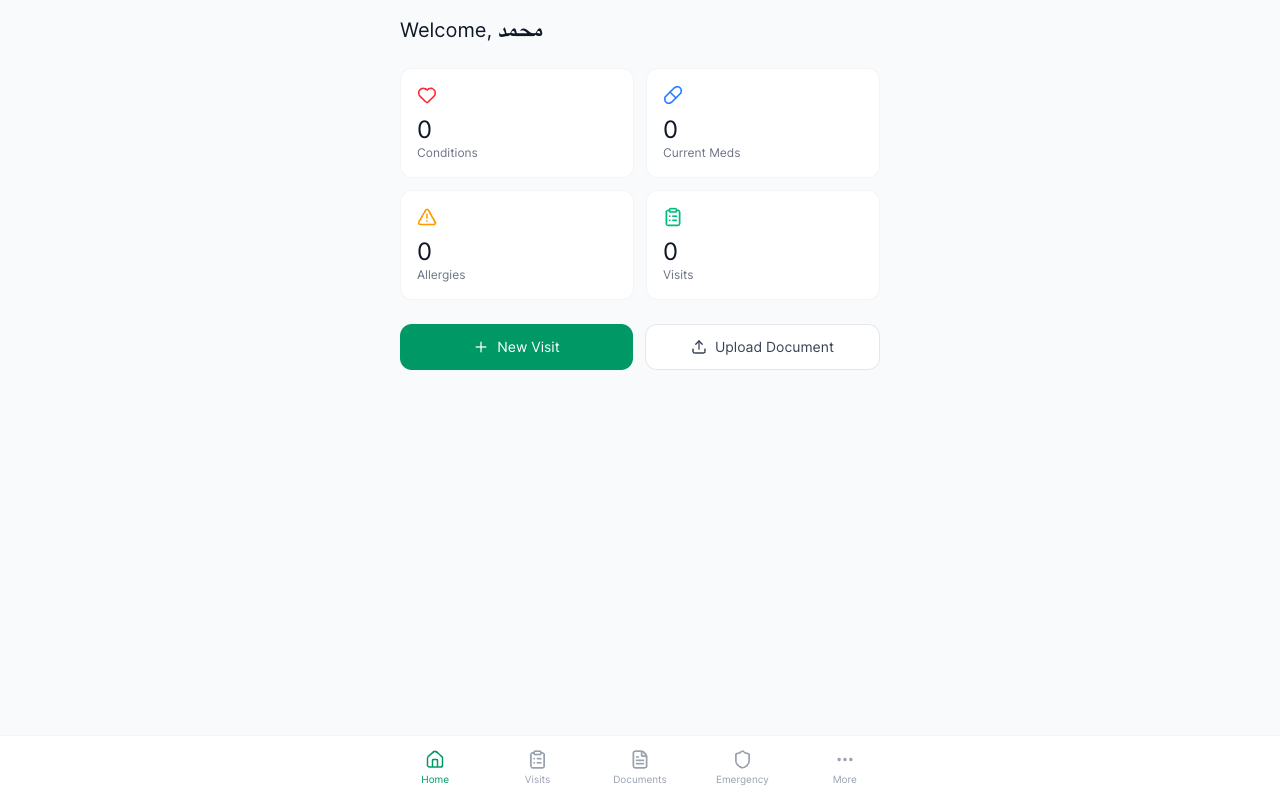
The Dashboard is your central hub in SehaFile. After logging in, you land on the home screen which provides a quick summary of your health profile, recent clinic visits, upcoming appointments, and important notifications. The bottom navigation bar gives you instant access to the five main sections: Home, Visits, Documents, Emergency, and Profile.

The SehaFile citizen dashboard showing health summary cards and upcoming appointments

Dashboard Sections

  1. Health Summary Cards -- At the top of the dashboard, you see quick-glance cards showing your blood type, number of active conditions, current medications count, and known allergies. Tap any card to jump directly to that section.
  2. Upcoming Appointments -- A chronological list of your confirmed appointments from clinics on the SehaFile network. Each appointment shows the doctor name, specialty, clinic name, and scheduled date/time. Appointments are automatically synced when a clinic books you.
  3. Recent Visits -- The last 5 visits (both clinic-synced and manually logged) appear in a timeline format showing the doctor, specialty, date, and chief complaint. Tap any visit to view its full details.
  4. Notifications Bell -- The bell icon in the header shows unread notifications including appointment reminders, family link requests, and data access alerts. A red badge indicates unread items.
  5. Bottom Navigation Bar -- Five tabs are always visible at the bottom of the screen:
    • Home (house icon) -- Returns to the dashboard
    • Visits (clipboard icon) -- View visit history and log new visits
    • Documents (folder icon) -- Upload and manage health documents
    • Emergency (hospital icon) -- Configure your emergency card and QR code
    • Profile (person icon) -- Edit personal info, settings, and health data

Tip: The dashboard auto-refreshes when you return to it. Pull down on the screen to manually refresh and see the latest synced data from your clinics.

Navigation Guide

Accessing Health Sections from Dashboard

From the Profile tab, you can access: Medical Conditions, Medications, Allergies, Lab Results, Family Links, Record Sharing, Data Export, and Settings. Each section is listed as a menu item in your profile page.

FAQ

Why do I see visits I did not log myself?

When you visit a clinic that uses SehaFile, the doctor's notes are automatically synced to your profile. These clinic-synced visits appear alongside your manually logged entries, marked with a "synced" badge.

Can I rearrange the dashboard cards?

Currently, the dashboard layout is fixed. The cards are ordered by importance: health summary, upcoming appointments, then recent visits.

How often are appointments synced?

Appointments sync in real-time. When a clinic books an appointment for you, it appears on your dashboard within seconds.

Was this article helpful?