IP Restriction
Control clinic access by IP address or CIDR range
Overview
IP Restriction allows clinic administrators to limit system access to specific IP addresses or ranges. When enabled, only users connecting from allowed IPs can access the clinic dashboard. This provides an additional layer of security, especially for clinics that operate from fixed locations.
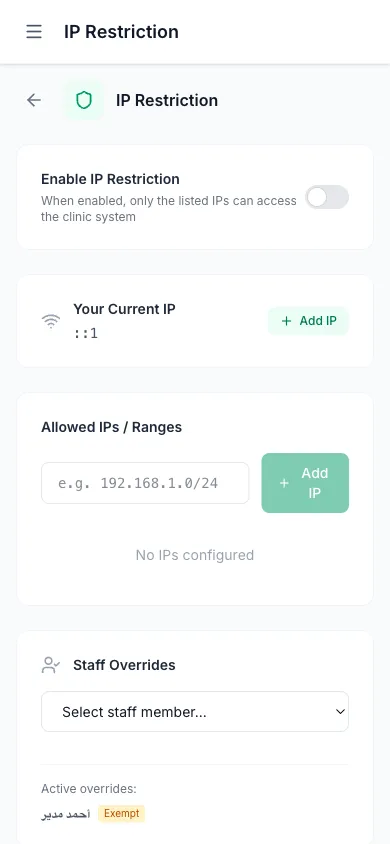
Enabling IP Restriction
- Navigate to Settings > IP Restriction from the sidebar
- Your current IP address is displayed at the top of the page
- Click Add IP next to your current IP to whitelist it (recommended before enabling)
- Toggle Enable IP Restriction to activate the feature
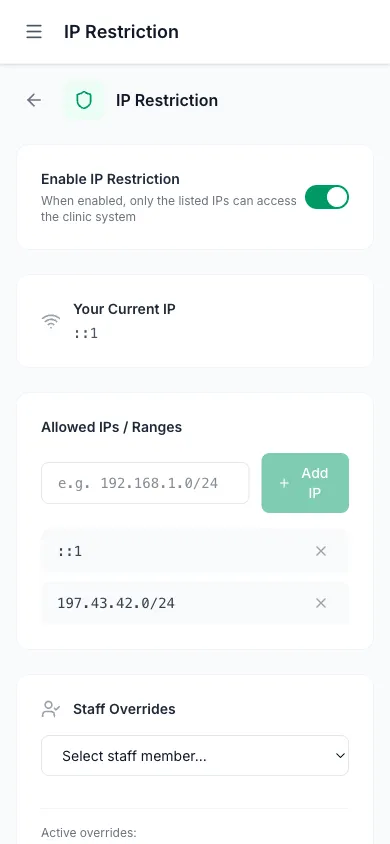
Managing Allowed IPs
You can add individual IPs or CIDR ranges:
- Single IP: e.g.
192.168.1.100 - CIDR range: e.g.
192.168.1.0/24(allows all IPs from 192.168.1.0 to 192.168.1.255) - Broader range: e.g.
10.0.0.0/16(allows 65,536 IPs)
To add an IP, type it in the input field and click Add IP or press Enter. To remove an IP, click the X button next to it.
Staff Overrides
Sometimes specific staff members need to access the system from different locations (e.g., a doctor working from home or another hospital). Staff overrides allow you to:
- Exempt a staff member: They can access from any IP regardless of the restriction
- Add extra IPs: Allow specific additional IPs for a staff member beyond the clinic’s global list
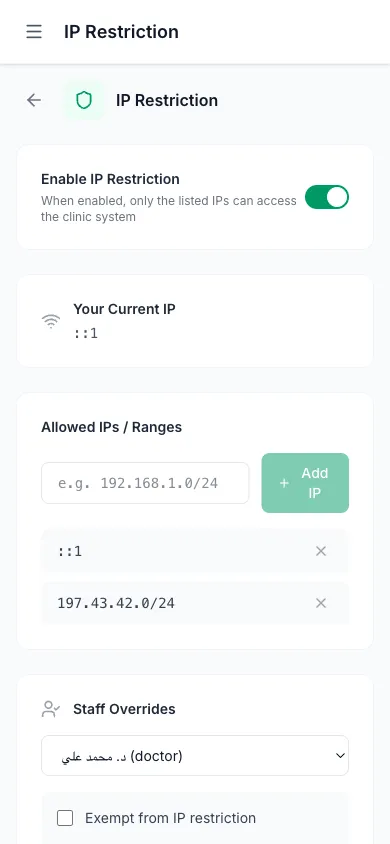
To configure a staff override:
- Select the staff member from the dropdown
- Check Exempt from IP restriction to completely bypass the restriction for them
- Or add specific IPs in the Additional IPs field
- Click Save
Platform Override
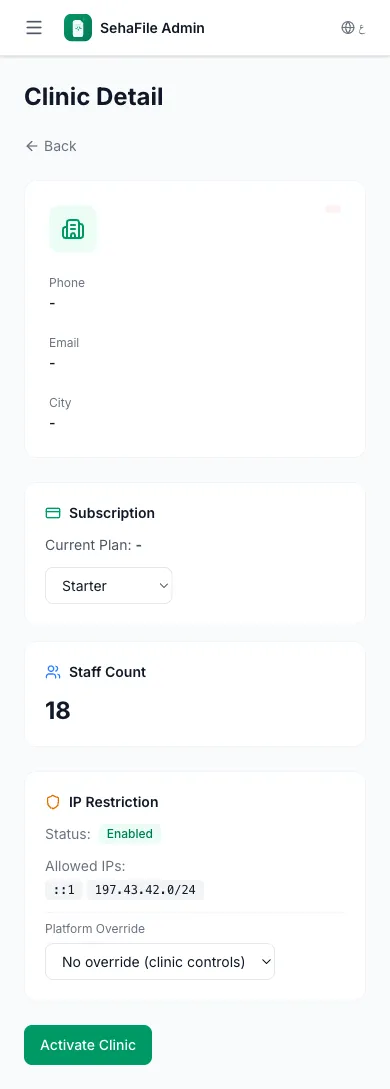
The SehaFile platform administrator can override IP restriction settings for any clinic:
- No override: The clinic controls its own IP restriction settings
- Force enabled: IP restriction is enforced even if the clinic admin disables it
- Force disabled: IP restriction is bypassed even if the clinic admin enables it
If a platform override is active, a banner appears at the top of the IP Restriction settings page indicating the current override status.
FAQ
What happens if I get locked out?
The IP Restriction settings page itself is always accessible regardless of your IP. Navigate to Settings > IP Restriction and either disable the feature or add your current IP to the allowed list.
Does IP restriction affect citizen users?
No. IP restriction only applies to clinic staff (admins, doctors, receptionists). Citizens accessing their health profiles are never blocked by clinic IP rules.
Does it work with VPNs?
Yes. If your staff uses a VPN, add the VPN’s exit IP to the allowed list. Be aware that VPN IPs may change, so consider using a CIDR range or exempting staff who use VPNs frequently.
What about mobile access?
Mobile networks typically use dynamic IPs. If doctors need mobile access, either exempt them or add their carrier’s IP range (be careful with broad ranges as this reduces security).
Was this article helpful?